Linux File Permissions and chmod Explained (755, 644 and Friends)
By Byteary Team · Aug 23, 2026 · 3 min read
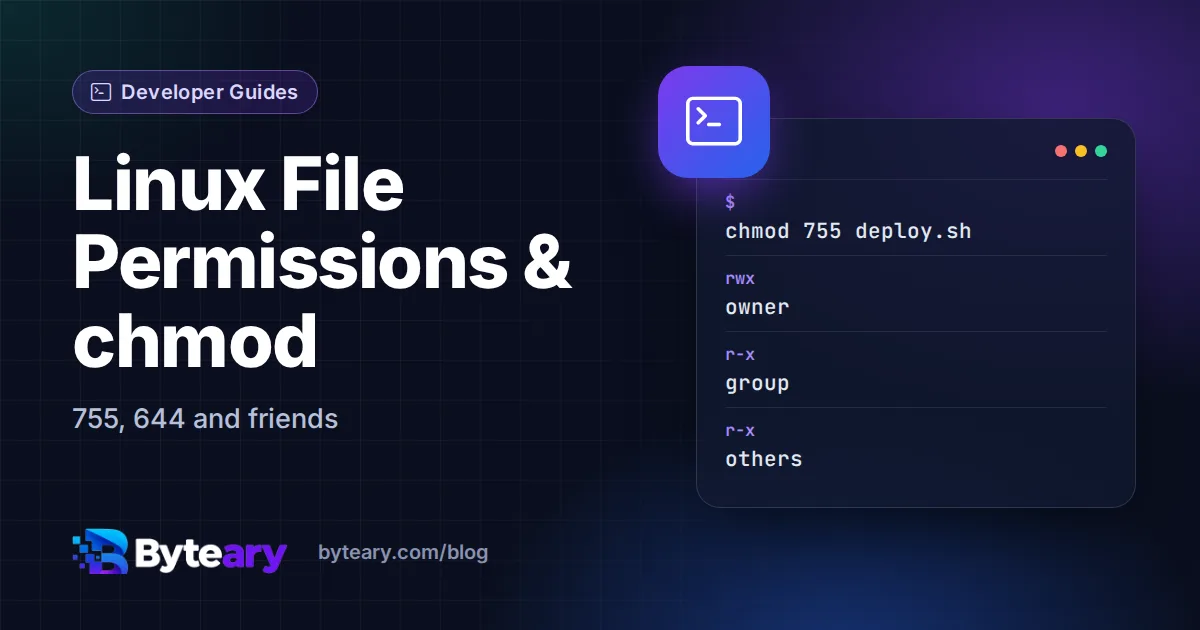
Sooner or later every website owner meets a "Permission denied" error, usually right after uploading files or moving a site to a new server. The internet's most common advice is chmod 777. It makes the error go away, and it also makes your files writable by every process on the server. There is a better way, and it only takes a few minutes to understand.
Reading a permission string
Run ls -l and you will see lines like:
-rw-r--r--  1 deploy www-data  4210 Sep 12 10:14 index.php
drwxr-xr-x  5 deploy www-data  4096 Sep 12 10:14 uploads
Ignore the first character for a moment (- means a file, d a directory). The next nine characters are three groups of three:
| Group | Applies to | Example |
|---|---|---|
| 1st | The owner (here deploy) | rw- |
| 2nd | The group (here www-data) | r-- |
| 3rd | Everyone else | r-- |
Each group says whether that class of user may read, write or execute. On a directory, "execute" means "may enter and list the contents", which is why directories almost always need x.
Where the numbers come from
Each permission has a value: read = 4, write = 2, execute = 1. Add them up per group:
rwx= 4 + 2 + 1 = 7rw-= 4 + 2 = 6r-x= 4 + 1 = 5r--= 4
So 755 is rwxr-xr-x, and 644 is rw-r--r--. That is the whole trick.
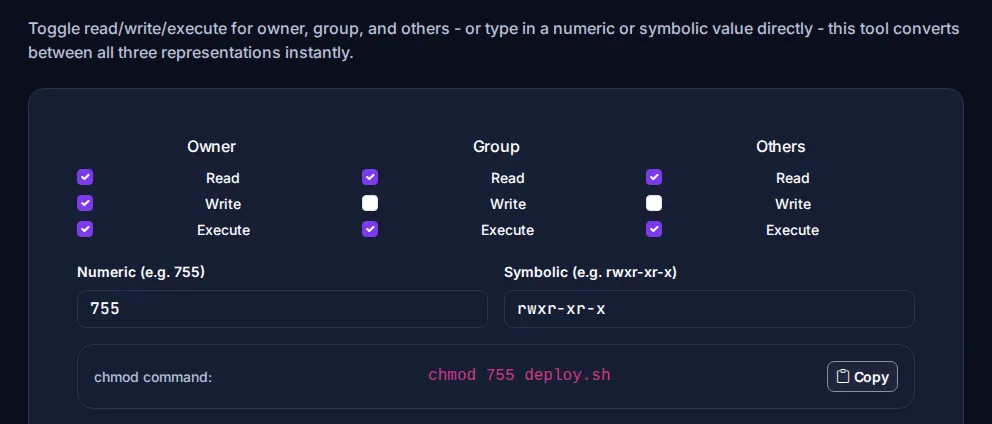
If you would rather not do the sums, the chmod Calculator lets you tick Read, Write and Execute for each group, or type a number or a symbolic string, and it converts between them instantly. Add a file path and it writes the full chmod command for you to copy.
Sensible permissions for a website
| What | Permission | Why |
|---|---|---|
| Directories | 755 | Owner manages them; the web server can enter and read |
| Normal files (PHP, HTML, CSS, images) | 644 | Owner edits; everyone else reads only |
Config files with passwords (.env, wp-config.php) | 640 or 600 | No access for "everyone else" |
| SSH private keys | 600 | SSH refuses to use keys others can read |
| Shell scripts you run | 755 or 700 | Need execute permission |
Folders the application writes to - uploads, cache, logs, Laravel's storage - need to be writable by the web server user. The clean way is to give that folder to the web server's group rather than opening it to everyone:
sudo chown -R deploy:www-data storage
sudo chmod -R 775 storage
The chown Command Generator helps you build that command correctly.
Why 777 is never the answer
777 gives write access to every user and every process on the machine. If any part of the server is compromised - an outdated plugin, another site on shared hosting - the attacker can now change your files too, including adding malicious code to pages your visitors load. The real fix for "Permission denied" is almost always the owner or group, not wider permissions.
Applying permissions in bulk
A common need is "all directories 755, all files 644". Using chmod -R 755 would make every file executable, which you do not want. Use find instead:
find /var/www/site -type d -exec chmod 755 {} \;
find /var/www/site -type f -exec chmod 644 {} \;
Run it on a copy first if you are not sure - there is no undo.
The special bits (briefly)
Sometimes you will see a fourth digit, as in 2775 or 1777. The leading digit sets special modes: setuid (4), setgid (2) and the sticky bit (1). Setgid on a shared folder makes new files inherit the folder's group; the sticky bit on /tmp stops users deleting each other's files. You rarely need these for a website.
For the full reference, see the GNU chmod manual. If you also write cron jobs on the same server, our guide to cron expressions is a good next read.