How to Check an SSL Certificate (and What Every Field Actually Means)
By Byteary Team · Aug 16, 2026 · 5 min read
Most people check a certificate by glancing at the padlock. That tells you the connection is encrypted right now, on your browser, for the exact address you typed. It does not tell you that the certificate expires in four days, that the www version is not covered, or that the server still accepts a protocol from 2006.
This guide walks through a proper check - the kind worth doing after every install, renewal or server move - and explains what each field in the result means.
What an SSL certificate actually proves
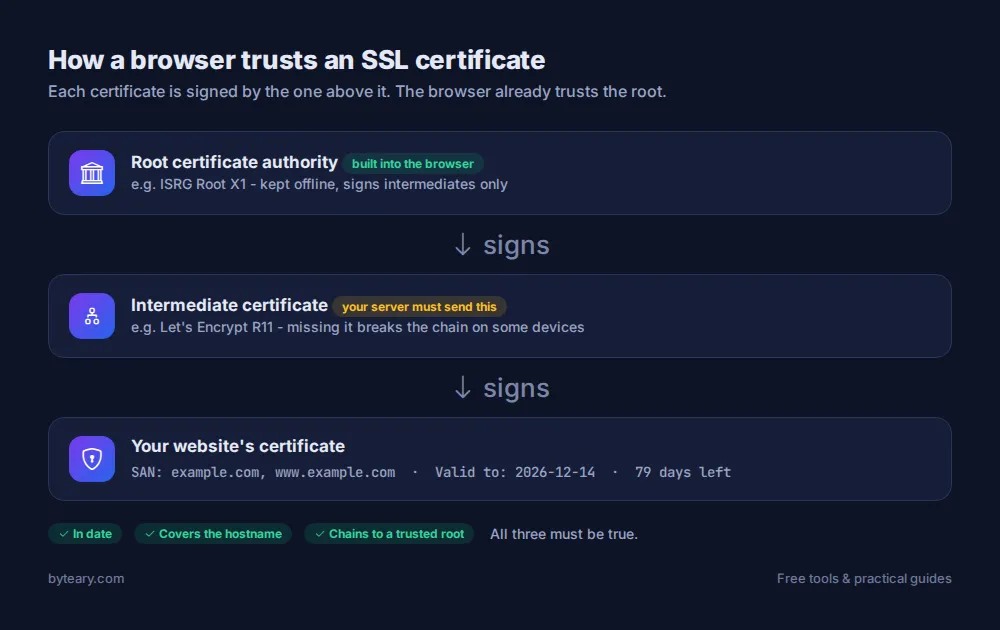
An SSL/TLS certificate does two jobs. It lets the browser and server agree on an encryption key, and it proves the server is allowed to speak for the domain. The second part is the one that breaks. A certificate is only accepted when three things are true at the same time:
- It is in date - today falls between its "valid from" and "valid to" dates.
- It covers the name you visited - either directly or through a wildcard such as
*.example.com. - It chains up to a trusted authority - the issuer (Let's Encrypt, Sectigo, DigiCert and so on) is trusted by the browser, and the server sends any intermediate certificates needed to prove that.
If any one of these fails, visitors get a full-page warning, and most of them leave.
How to check a certificate in under a minute
- Open the SSL Certificate Checker.
- Type the domain only -
example.com, nohttps://and no path. - Click Check SSL and read the result from top to bottom.
- Repeat for
www.example.comand any subdomain that matters (shop, app, mail). Each hostname can have its own certificate.
Because the check connects to the live server, you see what visitors receive right now - not what your hosting panel says it installed.
Reading the result, field by field
Status
Valid or invalid, with the reason. "Name mismatch" means the certificate exists but was issued for a different hostname - the classic case is a certificate for example.com served on www.example.com.
Issuer
The certificate authority that signed it. If you expected Let's Encrypt and see your hosting company's name, or the other way round, something in your setup is not doing what you think.
Covered names (SAN)
The Subject Alternative Name list is the real list of domains the certificate is valid for. The old "Common Name" field is ignored by modern browsers. Make sure every hostname you use appears here.
Valid from / valid to and days remaining
Free certificates last 90 days and are meant to renew automatically around 30 days before expiry. If you see fewer than 30 days left on a Let's Encrypt certificate, the renewal job probably is not running. Fewer than 7 is urgent. The SSL Expiry Checker shows just this number, which is handy when you are auditing a list of client sites.
Check the TLS version too
A valid certificate on an outdated protocol is still a problem. Run the domain through the TLS Version Checker. You want to see TLS 1.3 or TLS 1.2. TLS 1.0 and 1.1 were formally deprecated in RFC 8996 and modern browsers refuse them. Payment standards such as PCI DSS also require 1.2 or newer.
The five problems we see most often
| Symptom | Usual cause | Fix |
|---|---|---|
| Works on example.com, error on www | www not in the SAN list | Reissue the certificate with both names |
| Expired even though auto-renew is "on" | Renewal cron or Certbot timer missing after a server move | Run certbot renew --dry-run and restore the timer |
| Fine on desktop, error on some phones | Intermediate certificate not sent | Install the full chain (fullchain.pem), not just the leaf |
| Padlock with a warning triangle | Mixed content - images or scripts on http:// | Load every asset over https |
| Old certificate still showing after renewal | Web server not reloaded, or a CDN serving its own copy | Reload Nginx/Apache; check the certificate in your CDN panel |
For the mixed-content case, the Mixed Content Detector lists the insecure resources on a page so you do not have to hunt through the source.
After the certificate: force HTTPS
A certificate only helps if people end up on the HTTPS version. Two quick follow-up checks:
- HTTPS Redirect Checker - confirms
http://sends visitors tohttps://with a permanent 301 redirect. - HSTS Checker - confirms the Strict-Transport-Security header is set, so browsers skip the insecure request entirely on later visits.
We cover HSTS and the other protective headers in our security headers checklist.
A simple routine that prevents most outages
Put a recurring reminder in your calendar for the first Monday of each month and check your important domains with the SSL checker. It takes five minutes. Certificate expiry is still one of the most common reasons well-run sites go down, and it is entirely preventable.
If you are setting up certificates for the first time, the Let's Encrypt getting started guide is the best place to begin - it is free and most hosts support it with one click.