Cron vs systemd Timers: Which Should You Use for Scheduled Jobs?
By Byteary Team · Sep 2, 2026 · 3 min read
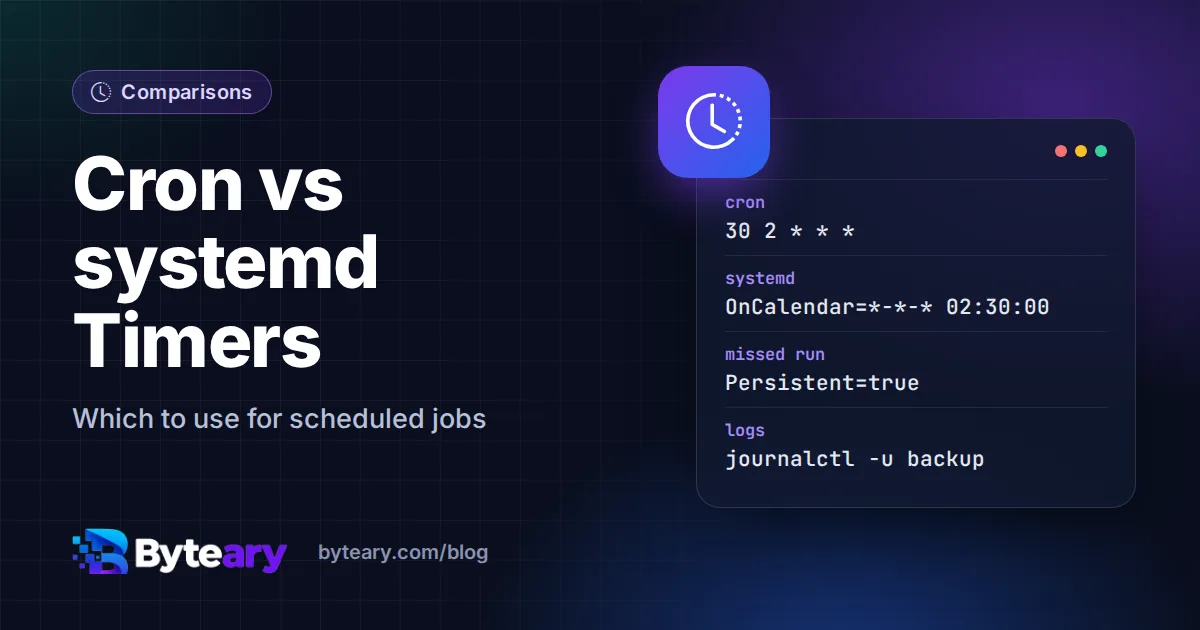
On a modern Linux server you have two built-in ways to run a job on a schedule: the classic cron daemon, and systemd timers. Both will run your backup script at 02:30. They differ in what happens when things go wrong - a missed run, a job that hangs, a failure nobody noticed. Here is the same job written both ways, then a straight comparison.
The same job, two ways
With cron, it is one line in crontab -e:
30 2 * * * /usr/local/bin/backup.sh >> /var/log/backup.log 2>&1With systemd, it is two small files. A service that says what to run - /etc/systemd/system/backup.service:
[Unit]
Description=Nightly database backup

[Service]
Type=oneshot
User=backup
ExecStart=/usr/local/bin/backup.sh
And a timer that says when - /etc/systemd/system/backup.timer:
[Unit]
Description=Run the backup every night

[Timer]
OnCalendar=*-*-* 02:30:00
Persistent=true
RandomizedDelaySec=5min

[Install]
WantedBy=timers.target
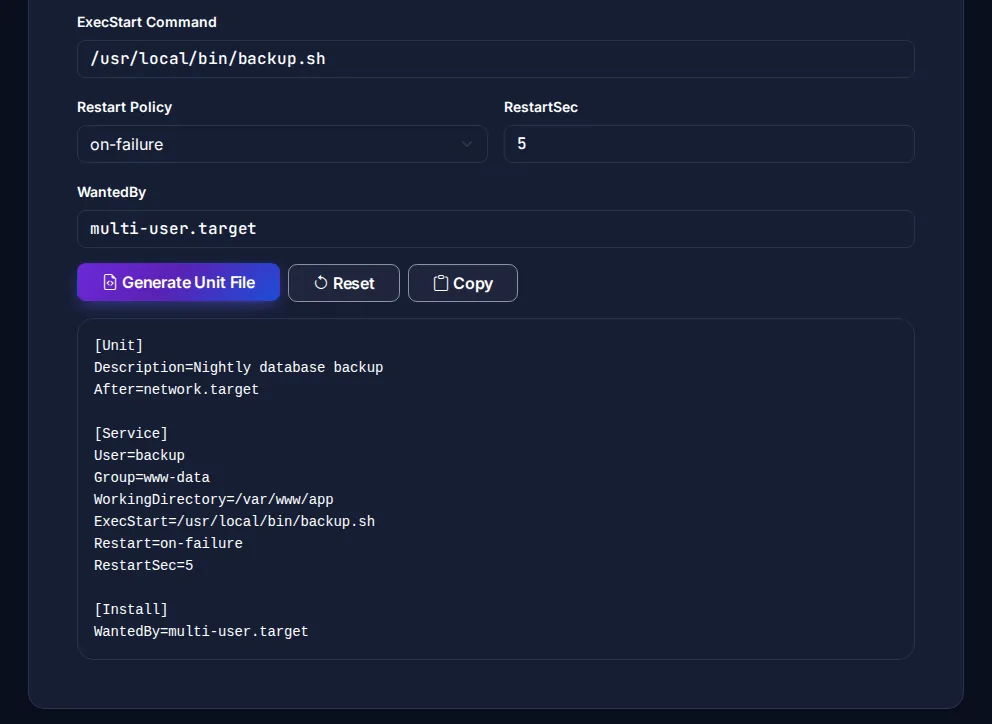
Then sudo systemctl daemon-reload and sudo systemctl enable --now backup.timer. The systemd Service Generator writes the unit file; set Type=oneshot and drop the restart policy for a scheduled job. For the cron line, use the Crontab Generator.
Side-by-side comparison
| cron | systemd timers | |
|---|---|---|
| Setup | One line | Two unit files |
| Schedule syntax | 30 2 * * * | OnCalendar=*-*-* 02:30:00, or relative times like OnBootSec= |
| Missed runs (server was off) | Skipped | Run at next boot with Persistent=true |
| Logs | Whatever you redirect; output may be mailed | Captured in the journal: journalctl -u backup |
| Overlapping runs | Possible; add flock yourself | A service cannot start twice while running |
| Resource limits | None built in | CPUQuota=, MemoryMax=, Nice= |
| Dependencies | None | After=, Requires= (e.g. wait for the network or a mount) |
| See next run | Not built in | systemctl list-timers |
| Portability | Every Unix, most containers | Linux with systemd only |
Where cron wins
- Simplicity. One line, readable by anyone, easy to review in a pull request.
- Portability. The same syntax works on macOS, BSD, older servers, shared hosting control panels, Kubernetes CronJobs and GitHub Actions - see our cron expressions guide.
- Per-user jobs without root access, via
crontab -e.
Where systemd timers win
- Reliability.
Persistent=truecatches up on runs missed while the machine was down - important for laptops and servers that reboot for updates. - Visibility. Every run's output and exit status is in the journal, and
systemctl status backupshows whether the last run failed. - Safety. No overlapping runs, resource limits, a dedicated user, and sandboxing options such as
ProtectSystem=. - Testing.
systemctl start backup.serviceruns the job now, in exactly the same environment as the scheduled run, andsystemd-analyze calendar "Mon..Fri 09:30"shows when anOnCalendarexpression next fires.
The systemd.timer manual documents every option.
Verdict
For a quick, low-stakes job - clearing a cache folder, pinging a URL - cron is perfectly fine and easier to read. For anything you would be upset to find silently failing - backups, billing, certificate renewals - use a systemd timer: the missed-run handling, journal logging and overlap protection are worth the extra file.
If you stay with cron
Close the gaps by hand: redirect output to a log file (as in the example), wrap long jobs in flock -n /tmp/backup.lock so they cannot overlap, and set MAILTO= at the top of the crontab so failures reach someone. Test the expression with the Cron Expression Builder - it shows the next run times - before you rely on it.