How to Reduce PDF Size for Online Forms (Without Uploading Your Documents)
By Byteary Team · Oct 3, 2026 · 4 min read
You have filled in the whole application, and then the portal says it: "File size should not exceed 200 KB." Your marksheet scan is 2.4 MB. It is one of the most common hold-ups with online forms in India - exam registrations, job applications, scholarship and government service portals all set tight limits on uploads.
This guide explains why your PDF is so big, how to make it small enough, and how to do it without sending your Aadhaar, PAN or certificates to a website you know nothing about.
Why scanned PDFs are so large
A PDF made from a Word document stores text as text: a few kilobytes per page. A scanned PDF is different. Each page is a photo, often taken at 300 or even 600 DPI in full colour, which is far more detail than any form needs. Phone scanner apps are just as bad - a modern camera takes 12-50 megapixel photos.
So the fix is nearly always the same: store the page images at a lower resolution and stronger JPEG compression. A page at 100-150 DPI is still perfectly readable on screen and usually fine when printed.
Do not upload your ID proofs to random websites
Most "compress PDF online" sites upload your file to their server, process it there and keep it for some time - minutes, hours or longer, depending on their policy. For a holiday brochure that does not matter. For an Aadhaar card, PAN, bank statement or salary slip, it should.
The Compress PDF tool on Byteary works differently: the PDF is opened and compressed by your own browser, and the smaller file is saved straight to your device. Nothing is uploaded. You can check this yourself in your browser's developer tools: the Network tab shows the page's own scripts loading, but never your file being sent.
Step by step: shrink a PDF under the limit
- Open Compress PDF and choose your file.
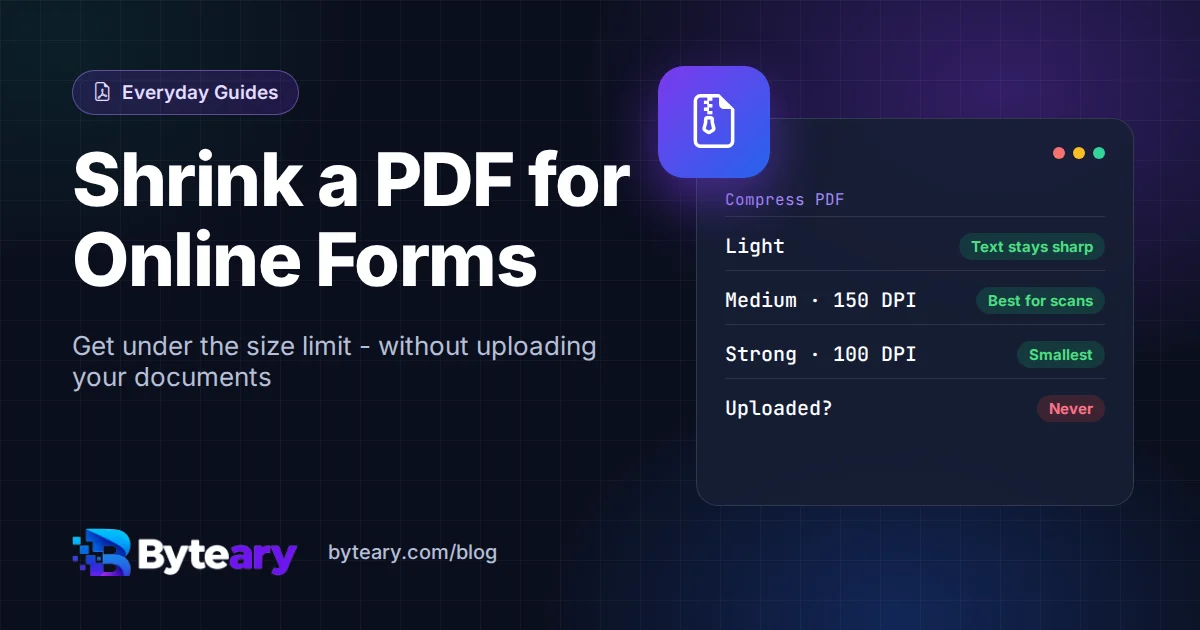
- Start with Medium (pages as 150 DPI images). Click Compress PDF and look at the new size.
- Still too big? Try Strong (100 DPI). Zoom in on the result to make sure small print is still readable.
- Still too big? Remove pages the portal does not need with Delete PDF Pages - for example the blank back of a certificate - and compress again.
Medium and Strong turn every page into an image, so the text can no longer be selected. For a scanned document that changes nothing, because it was already an image. For a PDF exported from Word or a bank's website, try Light first, which keeps the text sharp and selectable.
When you start from photos
If the portal wants one PDF made from several photos - for example, the front and back of an ID card - the order of steps matters:
- Crop the photos so only the document is visible. Background table or bedsheet just adds kilobytes.
- Combine them with JPG to PDF, using A4 pages and a small margin.
- Run the result through Compress PDF at Medium or Strong.
Got several separate PDFs that must go up as one file? Join them with Merge PDF first, then compress the merged file once.
Common upload errors and fixes
| The portal says | What to do |
|---|---|
| File too large | Compress at Medium, then Strong; remove unneeded pages. |
| File too small (for example, below 50 KB) | Use Light or Medium instead of Strong, or keep a few more pages. |
| Only PDF allowed, but you have a JPG | Convert it with JPG to PDF. |
| Only JPG allowed, but you have a PDF | Save the page as an image with PDF to JPG. |
| Page is sideways in the preview | Fix it with Rotate PDF before uploading. |
| Invalid or corrupt file | Password-protected PDFs are often rejected. Remove the password in the app that set it, then try again. |
Tips that save time next time
- Scan at 150-200 DPI, not 300 or 600, unless you need to print large. Use greyscale for black-and-white documents.
- Keep the original. Compressed copies are for uploading; keep the full-quality scan for printing later.
- Name files clearly, such as
class10-marksheet.pdf. Some portals reject spaces or special characters in file names. - Check the result before you submit: open the compressed file and zoom in on the smallest text, such as roll numbers and dates.