WebP vs JPG vs PNG: Which Image Format Should You Use?
By Byteary Team · Aug 18, 2026 · 4 min read
Open almost any slow website in your browser's developer tools and sort the network tab by size. The top of the list is nearly always images. Choosing the right format is the single easiest speed improvement most sites can make - often cutting page weight in half without anyone noticing a difference in quality.
The formats at a glance
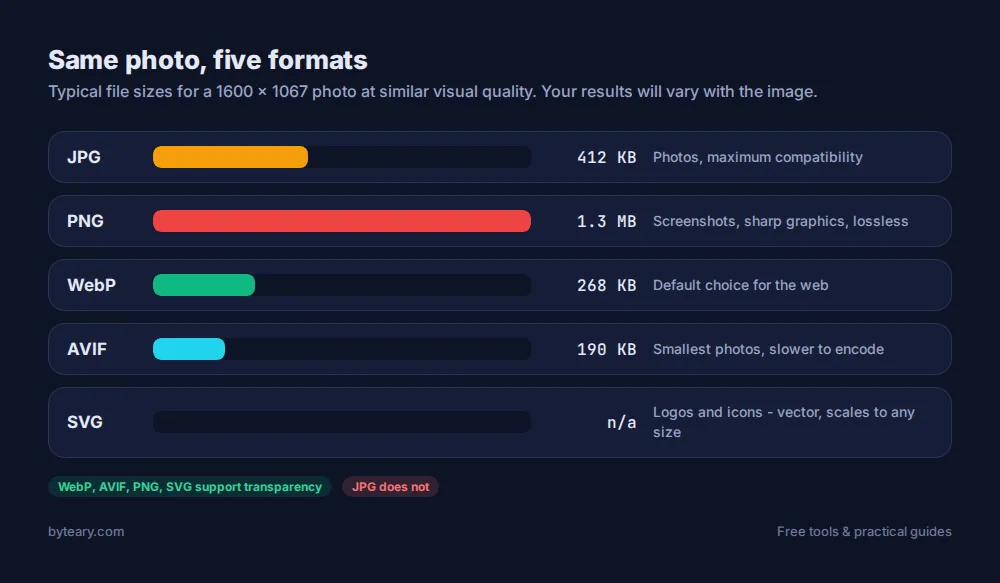
| Format | Best for | Transparency | Typical size |
|---|---|---|---|
| JPG | Photos, when you need maximum compatibility | No | Medium |
| PNG | Screenshots, graphics with sharp edges, images needing lossless quality | Yes | Large for photos |
| WebP | Almost everything on the web today | Yes | Small |
| AVIF | Photos where every kilobyte counts | Yes | Smallest |
| SVG | Logos, icons, simple illustrations | Yes | Tiny, and scales to any size |
JPG: the old reliable
JPG uses lossy compression tuned for photographs. At quality 75-85, most people cannot tell it apart from the original. It does not support transparency, and it handles text and sharp lines badly - look closely at a screenshot saved as JPG and you will see smudgy "artifacts" around the letters.
PNG: sharp, lossless and heavy
PNG never throws detail away. That is perfect for screenshots, diagrams and images with transparent backgrounds, and wasteful for photos: a photo saved as PNG is commonly several times larger than the same photo as a good JPG.
WebP: the sensible default
WebP, developed by Google, does both jobs. Lossy WebP photos are typically around 25-35% smaller than equivalent JPGs, and lossless WebP is usually smaller than PNG. It supports transparency and animation too. Every current major browser supports it, so for most sites WebP should simply be the default.
Convert an image in seconds with the WebP Converter: upload a JPG, PNG, GIF or BMP, choose a quality (85 is a good starting point), and download the result. The conversion happens in your browser - your images are not uploaded to a server.
AVIF: smaller still, a bit slower
AVIF compresses even better than WebP, especially for photos, but encoding is slower and support in older software is patchier. Use it for large hero images and photo-heavy pages, with a fallback. The AVIF Converter can create one if your browser supports AVIF encoding.
SVG: not really an image file at all
SVG is a drawing described in code, so a logo looks crisp on every screen at a few kilobytes. Use it for logos and icons. Tidy up exported SVGs with the SVG Optimizer, and when you need a raster version for email or social media, use SVG to PNG or SVG to JPG.
Serve modern formats with a fallback
<picture>
  <source srcset="hero.avif" type="image/avif">
  <source srcset="hero.webp" type="image/webp">
  <img src="hero.jpg" alt="Team at work" width="1200" height="630">
</picture>
The browser picks the first format it supports. Always keep the width and height on the img - it reserves space and prevents the page jumping as images load.
Format is half the job - size is the other half
A perfectly compressed 4000-pixel photo shown in a 400-pixel box is still wasted bytes. Resize images to roughly the largest size they are displayed at (double it for sharp screens), then compress.
Check a live page with the Image Optimization Checker. It flags images without width and height, images missing loading="lazy", and files over 300 KB. Lazy-load images further down the page, but not the main image at the top - that one should load straight away.
Quick decision guide
- Photo on a website - WebP (or AVIF with a WebP fallback).
- Screenshot or diagram - WebP lossless, or PNG.
- Logo or icon - SVG.
- Email newsletter - JPG or PNG; some email clients still do not show WebP.
- Favicon - use the Favicon Generator.
Google's WebP documentation covers the format in depth, and web.dev's image format guide is a good broader read. Images are one part of page speed; our guide to compression and caching covers the rest.