How to Convert CSV to JSON (Without Breaking Your Data)
By Byteary Team · Sep 9, 2026 · 3 min read
A client sends a spreadsheet of products. Your app, your API or your import script wants JSON. The conversion looks like a five-minute job - until one product description contains a comma and every column after it shifts by one.
Here is how to do it properly, and what to check before you import the result anywhere.
What the conversion actually does
With a header row, each line of the CSV becomes one object, and the header names become the keys:
name,price,stock
Blue Mug,249,40
Travel Bottle,599,12
becomes
[
  { "name": "Blue Mug", "price": "249", "stock": "40" },
  { "name": "Travel Bottle", "price": "599", "stock": "12" }
]
Without a header row, each line becomes a plain array of values instead.
Step by step
- Export your sheet as CSV. In Excel, use File → Save As → CSV UTF-8; in Google Sheets, File → Download → Comma-separated values.
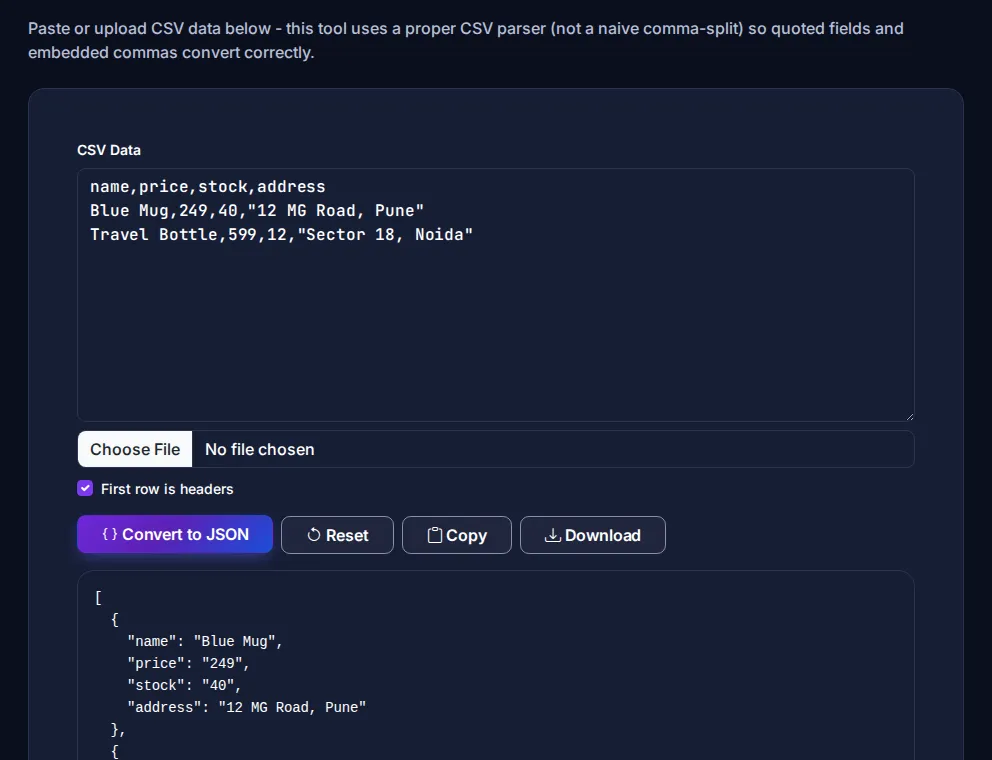
- Open the CSV to JSON converter and paste the data, or upload the file.
- Leave First row is headers ticked if your first line contains column names.
- Click Convert to JSON, then Copy or Download the result.
Customer lists and price sheets are exactly the kind of data you should not upload to random websites. This converter never sends your file anywhere - it is processed on your own machine.
The traps, and how the converter handles them
Commas and line breaks inside values
A proper CSV wraps such values in double quotes: "12 MG Road, Pune". The converter follows the standard CSV rules, so quoted commas stay inside the value, quoted line breaks are kept, and a doubled quote ("") becomes a single quote character. A naive "split on comma" script gets all three wrong.
Rows with extra values
If a row has more values than there are headers, the extra values are left out and you get a warning naming the row. Almost always this means an unquoted comma in the source data - fix it in the spreadsheet and export again.
Everything comes out as text
CSV has no data types, so values arrive as strings: "249", not 249. That is deliberate. Guessing is risky - a PIN code like "011" would lose its leading zero, and a long ID number could lose precision. Convert the specific fields you need to numbers in your own code.
Semicolon-separated files
Excel in many European locales saves CSV with semicolons, because the comma is their decimal separator. This converter expects commas. Either change the export settings or use the CSV to TSV and related tools after fixing the delimiter.
Strange characters (é, ’)
That is an encoding mix-up: the file was saved in an old Windows encoding and read as UTF-8. Re-export using the "CSV UTF-8" option.
Check the result before importing
Paste the output into the JSON Validator or JSON Formatter and scroll through a few records. Look for empty keys (a blank header cell), duplicate keys (two columns with the same header - the later one wins) and fields that shifted. Our guide to formatting and validating JSON covers the common errors.
Going the other way
Need a spreadsheet from an API response? The JSON to CSV converter turns an array of objects into rows and columns you can open in Excel. For database imports, CSV to SQL generates INSERT statements directly, and there are converters for XML and YAML as well.
The CSV format itself is described in RFC 4180 - short, and the reason quoted fields work the way they do.