How to Format and Validate JSON (and Fix the Errors You Keep Seeing)
By Byteary Team · Aug 26, 2026 · 3 min read
JSON is everywhere: API responses, config files, logs, exports. It is also strict. One missing quote and the whole document fails to parse, often with an error message that points somewhere unhelpful. Here is a quick workflow for reading and fixing it.
Step 1: make it readable
APIs usually return JSON minified - everything on one line to save bytes. That is fine for machines and useless for people.
- Paste the JSON into the JSON Formatter.
- Click Format JSON. The output is indented with two spaces, one key per line.
- Use Copy Result to take it back to your editor.
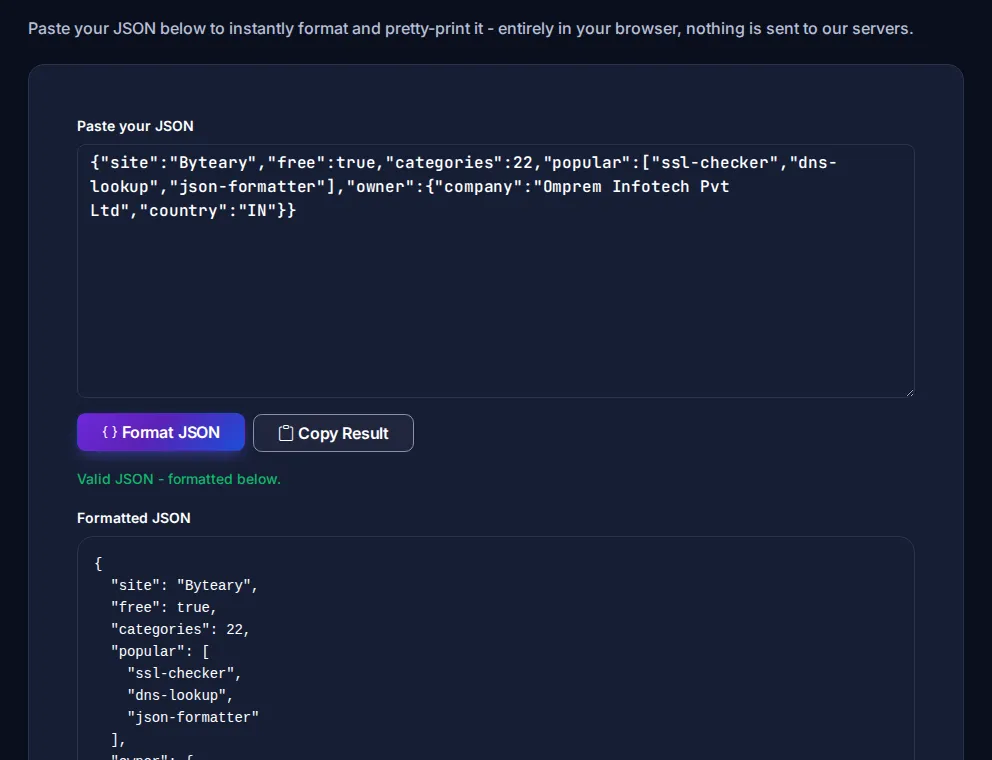
Everything runs in your browser, so API responses containing customer data or tokens never leave your machine.
Step 2: validate it
If you only need a yes or no - is this valid JSON? - use the JSON Validator. When the JSON is invalid it shows the parser's error message, which usually includes the position where parsing failed. The actual mistake is often just before that position.
The six errors behind almost every failure
1. Trailing commas
{ "name": "Byteary", "free": true, }JavaScript allows the comma after the last item. JSON does not. This is the single most common error, especially in hand-edited config files.
2. Single quotes
{ 'name': 'Byteary' }Strings and keys must use double quotes. Always.
3. Unquoted keys
{ name: "Byteary" }Valid JavaScript object, invalid JSON.
4. Comments
JSON has no comments - not //, not /* */. Some tools (like VS Code settings) accept "JSON with comments", but a standard parser will reject it.
5. Unescaped characters in strings
A double quote inside a string must be written \", a backslash \\, and a line break \n. Windows paths are a frequent culprit: "C:\Users\new" contains \U and \n, which are escape sequences, not letters.
6. Values JavaScript allows but JSON does not
undefined, NaN, Infinity, functions and dates are not JSON values. Dates are normally sent as ISO strings like "2026-09-01T10:30:00Z".
Reading the error message
Browser parsers report errors like Unexpected token } in JSON at position 42 or Expected double-quoted property name. The position is a character count from the start. When the reported character looks innocent, look one step back: the real cause is usually a trailing comma or missing quote just before it.
If you get Unexpected token < at position 0, you are not looking at JSON at all - the server returned an HTML page, typically an error page or a login redirect. Check the HTTP status of the request; our guide to HTTP status codes helps with that.
Going the other way: minify
For config values, environment variables or smaller payloads, the JSON Minifier strips all whitespace and returns a single line.
Useful next steps
- JSON to TypeScript - generate interfaces from a sample response.
- JSONPath Tester - pull specific values out of large responses.
- JSON to CSV - turn an array of records into a spreadsheet (and see our CSV to JSON guide for the reverse).
The whole JSON grammar fits on a single page at json.org - worth a two-minute read if you work with it daily.